Vlog AI: Photo to Video
- 3.9
- Rating
- 100.00K
- Installs
- Free
- Price
 Analysis by App-foxy
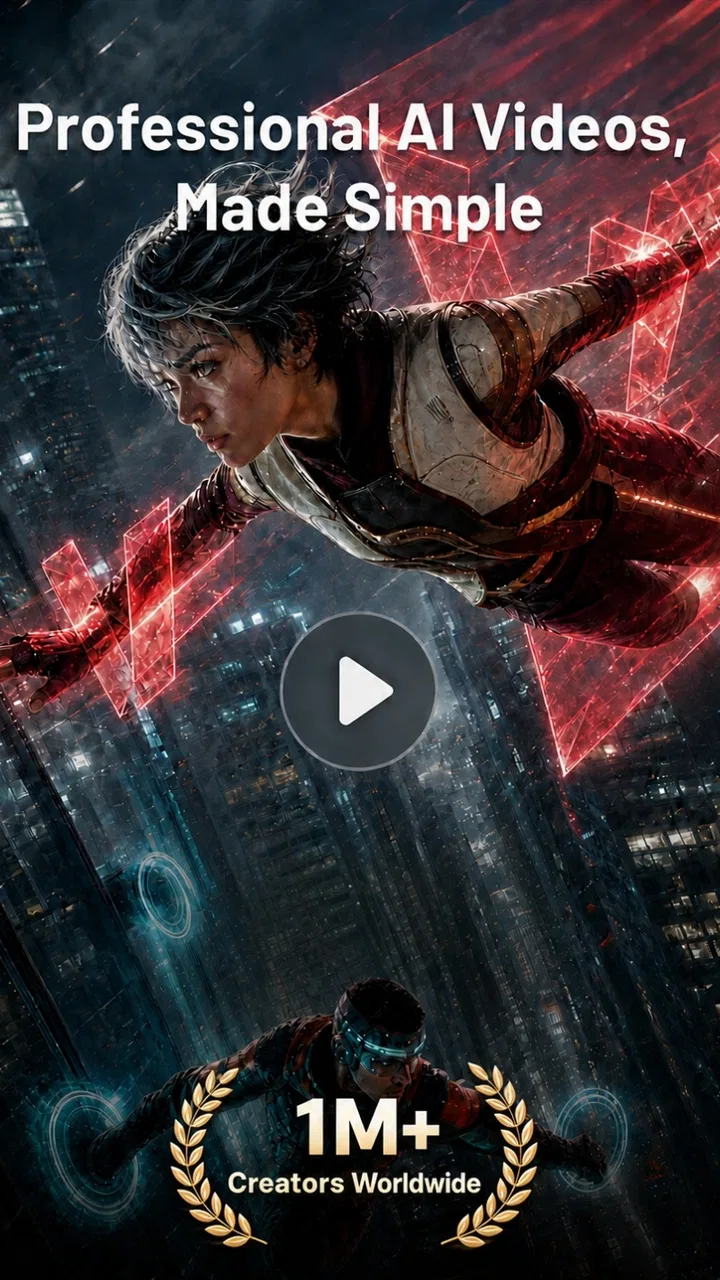
Vlog AI: Photo to Video caught my attention because it turns a still image into something that feels more alive, while also bringing together AI video, image creation, dance effects, speaking videos, and music-based edits. I tested it with the mindset of someone who wants quick social content rather than a full editing workstation, and my first impression was clear: the app is most enjoyable when I treat it as a creative sketchbook, not as a replacement for careful video production.
That distinction matters. The app is free to install, belongs to the Art & Design category, and is made by Fire Elite Team. It has passed the early curiosity stage with over 100 thousand installs and an average score of 3.9 from around 4.6 thousand ratings. Those figures suggest a product people are willing to try, although the rating also hints that the experience is not equally satisfying for everyone.
I found the appeal strongest during the first few sessions. A normal portrait, character drawing, or travel photo can become the starting point for a short visual experiment. The process feels much less demanding than opening a conventional editor, choosing a timeline, learning keyframes, and searching for effects one by one. If your goal is to make something playful for a story, status update, or private message, that quick route is the main reason to keep the app installed.
You May Also Like

 Blood Strike: 2.5 Anniversary
Blood Strike’s Loadouts Turn Every Drop Into a Tactical Gamble
A close look at Blood Strike’s custom loadouts: how fast access to signature weapons reshapes its battle royale rhythm, rewards preparation, and narrows the gap between fights.

 Pandora - Music & Podcasts
Pandora’s Music Is Easy to Start, but Harder to Recover
Pandora’s strength is its low-effort path from a seed to a station. Its weak spot is how much confidence it asks you to place in connection, setup, and quiet recovery.

 8 Ball Pool
8 Ball Pool Is Built on Rivalries, Rematches, and Routine
A close look at the rivalries, rematches, shared routines, and unanswered safety questions that turn a quick pool match into a persistent mobile community.

 Samsung Music
Samsung Music’s Quiet Strength Is Playing What You Already Own
Its reach comes less from spectacle than from dependable access to a personal library. That simplicity is both the app’s strongest retention engine and its ceiling.

 AccuWeather: Weather Radar
AccuWeather Review: A Quick, Clear Forecast for Everyday Decisions
For everyday plans, the best forecast is the one you can understand quickly. AccuWeather makes rain timing, radar, and local conditions easy to act on, with a few trade-offs.

 Hill Climb Racing
Why Hill Climb Racing Still Turns Crashes Into One More Run
A tiny car, a bumpy hill and one more upgrade: Hill Climb Racing keeps resurfacing because its simple chaos makes every near-miss feel personal.
More From Our News Desk



What the first week feels like
The first week with Vlog AI: Photo to Video is driven by discovery. I could move between photo-based ideas and more expressive concepts such as AI dance or a speaking-style video, then compare which direction suited the source image. That variety gives the app a stronger opening than a single-purpose animation tool. It is easy to begin with one photo and then wonder how the same image might work with movement, music, or a different visual treatment.
A useful way to approach the app is to prepare several kinds of source material before experimenting. A clear portrait is a sensible starting point for a speaking or performance concept, while a full-body image is more suitable when the intended result depends on visible movement. A landscape or product photo may work better as a visual scene than as a character. This is not a promise that every image will transform perfectly; it is a practical way to reduce disappointing results.
One of my favorite early uses was making a short greeting from a still photograph. Instead of building a polished presentation, I used the image as a visual prompt and focused on whether the movement and sound made the message feel more personal. This kind of task shows where the app has an advantage over ordinary slideshow makers: the result can feel animated without requiring me to manually create every transition.
The same convenience can also expose the app’s weakness. AI transformations are interpretive, so the output may not preserve the exact details that made the original photo appealing. A face, pose, garment, or background can become less convincing once movement is introduced. I learned to judge the result as a short creative effect rather than expecting a faithful, professional animation of the original image.
The music-oriented side is useful when the visual idea needs energy. A simple image can become more suitable for a social post when timing, movement, and audio are considered together. Still, I would not use the app as my main tool for arranging a complete soundtrack or building a detailed narrative. Its strength is the fast transformation from idea to shareable experiment, not the deep control associated with established mobile editors.
For a new user, the best first-week routine is to test the same image in several styles instead of spending all available time polishing one result. This reveals an important trade-off early: the app rewards experimentation, but it may frustrate anyone who wants predictable, repeatable control. I would also keep the original photo untouched and compare each result beside it. That makes it easier to decide whether the animation adds personality or merely adds motion.
The app is aimed at a Teen audience, which is worth keeping in mind when choosing images, messages, and sharing habits. I would be especially careful with photos of other people. A playful transformation can still feel uncomfortable if someone has not agreed to have their image used. That is a general responsibility with AI media, but it becomes more relevant here because the app makes experimentation so quick.
Where it fits better than a normal editor
Traditional mobile video editors are better when I already know exactly what I want: a specific cut, a controlled transition, a precise caption position, or a carefully timed sequence. They give me a timeline and a predictable set of tools. Vlog AI is better at the earlier stage, when I have a photo and a loose idea such as “make this feel alive” or “turn this into a short performance.”
That makes it complementary rather than universally superior. I would use this app to generate a starting clip, then move to a conventional editor if the project needed trimming, layered text, several scenes, or exact timing. For a quick social experiment, that extra step may be unnecessary. For a serious personal project, it is likely to become necessary.
The first-week novelty is real, but it is not the same as lasting value. Many AI creative apps feel impressive when every button produces a surprise. The more important question is whether the surprise can become a repeatable workflow. In my experience, this one has a chance of doing that when I use it for recurring visual tasks rather than random demonstrations.
What remains useful after the novelty fades
After the initial excitement, I started looking for reasons to return that did not depend on showing off a new effect. The strongest recurring use is quick content for people who post regularly but do not want to edit every clip from scratch. A small business owner could use product or lifestyle images as starting points for short promotional ideas, while a creator could turn unused photos into occasional visual posts. The app is also practical for someone who wants to send a more expressive greeting without learning advanced editing.
A realistic everyday scenario would be a family member preparing a birthday message on a phone. They may have one good portrait, a short line of text, and a desire to make the message feel less static. Instead of assembling a full video, they can experiment with an AI-generated visual treatment and music-oriented presentation. If the result looks natural enough, it becomes a quick personal touch. If it looks artificial, the original photo still works better than forcing the effect.
Another recurring workflow is repurposing an image archive. Many people have photos that never become posts because they lack time or a clear editing idea. This app gives those images a possible second life. The useful habit is to select only a few strong photos, test them with a defined purpose, and keep the best result. Creating dozens of nearly identical clips is less valuable than finding one that communicates something clearly.
The app can also help with visual brainstorming. I would use it before committing to a more demanding edit, especially when I am unsure whether a portrait should become a dance-style clip, a speaking presentation, or a music-led visual. The generated result acts as a rough concept. Even when it fails, the failure can show that the source image or idea needs to change.
That is one of the less obvious benefits: it reduces the cost of trying an idea. In a traditional editor, I might spend time building a sequence before discovering that the concept is weak. Here, the first experiment can happen earlier. The trade-off is that speed does not guarantee quality. The app helps me decide whether an idea is worth pursuing; it does not automatically make the idea good.
For creators who need a consistent visual identity, the value is more limited. AI transformations can make each result feel different, which is fun for casual posts but less helpful when every video must match a brand style. I would use the app for occasional attention-grabbing material, then rely on a regular editor and established templates for the core of a professional feed.
The free entry point makes it easy to test this workflow without committing immediately. At the same time, in-app purchases range from $2.99 to $59.99 per item, so I would pay attention before treating the app as a daily production tool. A free app can become expensive if experimentation turns into repeated purchases. I would first establish whether the outputs are genuinely useful for my own needs rather than buying simply because a new effect looks tempting.
The current version is 2.1.6, and the app runs on Android 8.0 or later. That makes it accessible to people using older compatible Android devices, although the quality of an AI media workflow can still depend heavily on the phone’s general performance and available storage. I would leave room for generated files and avoid testing it when the device is already struggling with space or background tasks.
Small workflow choices that make a difference
My first practical tip is to crop with the intended movement in mind. If the subject is already cut off at the knees or elbows, an effect that expects visible body movement has less visual information to work with. A centered, well-lit source gives the app a better starting point than a busy group photo. This does not guarantee a perfect result, but it makes comparisons fairer.
My second tip is to separate “idea testing” from “final sharing.” I would create a few variations privately, choose the one with the most natural movement, and only then decide whether it deserves a caption or music. This avoids spending time presenting a clip that still feels experimental. It also helps me notice whether the audio supports the image or simply makes the result louder.
My third tip is to keep a small source-image folder organized by purpose: portraits, full-body photos, products, scenery, and illustrations. That sounds simple, but it turns the app from a novelty button into a repeatable creative tool. When I have a clear source for a clear task, I spend less time scrolling through unsuitable images and more time judging the actual result.
A fourth insight is that short clips benefit from restraint. When the visual transformation is already dramatic, additional music or excessive effects can make the result feel crowded. I had better outcomes when I treated one strong movement or visual change as the main event. The app’s range encourages adding more, but the most shareable result is often the one that communicates one idea quickly.
Maintenance, friction, and reasons to take a break
Keeping the app installed is easy; keeping it useful requires a little discipline. The maintenance burden is not about complicated project management so much as managing expectations. I need to remember which images work well, which concepts suit a short AI transformation, and when a normal editor would be faster. Without that judgment, the app can become a place where I generate clips without a clear reason to use them.
Storage is another practical consideration. AI video and image experiments can accumulate quickly, especially when I save several versions of the same idea. I would regularly remove failed attempts and keep only the source image plus the selected result. This simple cleanup prevents the creative process from becoming an archive of disposable files.
There is also a creative maintenance issue. If every post uses an AI dance or speaking treatment, the effect can lose its impact. Friends and followers may respond to the first few experiments, but repetition makes the content predictable. I would use these features as accents in a broader mix of ordinary photos, direct video, and manually edited clips. The app works better as one ingredient than as an entire content strategy.
For people who dislike trial and error, the app may feel tiring sooner than expected. The store rating of 3.9 suggests a reasonably positive but not flawless reception, and that matches my overall impression: the concept is appealing, while the gap between an interesting preview and a satisfying final result can be noticeable. If I need exact control over facial movement, timing, typography, or scene order, I would rather use an editor designed around those controls.
Another source of fatigue is the temptation to judge every result against professional AI demonstrations. Short promotional examples often show the most successful outcomes, while real use involves ordinary photos, awkward framing, and ideas that do not translate cleanly. I found the app more enjoyable after lowering the target from “make a flawless video” to “find a visually convincing moment.” That is a smaller promise, but a more realistic one.
Privacy and consent should also shape a long-term routine. I would avoid casually uploading sensitive portraits, private documents, or images of people who have not agreed to the transformation. The app’s convenience makes it easy to forget that a photo can carry personal information. For public-facing work, I would use images I have the right to edit and share, and I would be cautious about turning a real person into a speaking or performance-style clip without permission.
Purchases deserve similar attention. Since the app is free but includes paid items, I would decide on a spending limit before exploring heavily. The right question is not whether a particular effect is exciting, but whether it solves a recurring need. If I only want to try one amusing transformation, the free experience may be enough. If I plan to create content every week, I would evaluate the cost against how often the result actually saves me time.
Who should use it and who should skip it
I would recommend Vlog AI to casual creators, social users, hobby artists, and anyone who enjoys turning a single image into a quick visual experiment. It is especially suitable for people who have ideas but do not want to learn a full timeline editor. It can also be useful for a creator who needs occasional concept clips, provided the generated material is treated as a draft or accent rather than guaranteed finished work.
I would be more cautious recommending it to professional editors, agencies, or users who require repeatable results across many projects. Those users are likely to care more about precise controls, reliable consistency, detailed audio editing, and predictable export workflows than about instant experimentation. A standard video editor would usually be the better main tool, with this app serving only as a source of ideas if its particular effects fit the project.
I would also skip it if my main goal were advanced photo retouching, detailed illustration, or long-form video production. Its identity is built around transforming images into short, expressive media. It is not the right choice simply because it contains the word “AI.” Choosing it for a task outside that central strength would create unnecessary frustration.
My long-term verdict
Vlog AI earns a place on my phone when I want speed, surprise, and a low-pressure way to explore photo-based video ideas. Its strongest quality is not that every result looks perfect; it is that the distance between a still image and a rough animated concept is short. That makes it valuable for greetings, social posts, creative tests, and occasional content that would otherwise remain unused.
Its lasting value depends on moderation. If I open it expecting a complete replacement for a conventional editor, I will probably notice the lack of precise control and tire of inconsistent results. If I use it as a fast idea generator, keep my source images purposeful, clean out failed files, and avoid paying for effects without a recurring need, it becomes much easier to justify keeping installed.
The app’s free price lowers the barrier to trying it, while the Teen content rating and Android 8.0 minimum make its basic audience and compatibility clear. Fire Elite Team has built something approachable, but approachability should not be confused with professional depth. I see it as a creative shortcut with genuine everyday uses, not as a complete production suite.
My final recommendation is therefore conditional but positive: try it if you regularly share visual messages or want to animate personal images without learning complex software. Give it a fair test with several different source photos, and judge the results by whether they communicate something naturally. Skip it if you need exact editing control or consistent commercial output. The app earns lasting space through repeatable small wins, not through endless novelty.
FAQs for Vlog AI: Photo to Video
01What is Vlog AI: Photo to Video, and what can I create with it?
Vlog AI: Photo to Video is a mobile editing app designed to turn still photos into short, dynamic videos. It typically combines images with transitions, motion effects, music, text, filters, and AI-assisted tools, making it useful for social media posts, travel memories, birthday slideshows, product presentations, and personal vlogs. It is aimed at users who want quick results without learning a complex professional video editor.
02Is Vlog AI: Photo to Video easy to use for beginners?
The app is generally designed around a straightforward, template-based workflow. After selecting photos from your device, you can choose a style or template, adjust the order and timing, add music or captions, and preview the result before exporting. Beginners should be able to create a basic video quickly, although some advanced AI effects and customization options may require experimentation to understand fully.
03Does Vlog AI: Photo to Video require an internet connection?
Some basic editing functions may work with photos already stored on your phone, but an internet connection can be necessary for downloading templates, accessing online music or effects, processing AI-powered features, and exporting certain projects. Availability may also depend on the specific version of the app. For the smoothest experience, use a stable Wi-Fi connection, especially when working with high-resolution images or cloud-based tools.
04Is Vlog AI: Photo to Video free to download and use?
The app may be available as a free download, but free access can come with limitations such as advertisements, restricted templates, watermarks, export-quality limits, or a capped number of AI generations. Some features may require in-app purchases or a subscription. Before creating a large project, check the pricing screen carefully and confirm whether a trial automatically changes into a paid subscription after the trial period ends.
05How do I protect my privacy when using Vlog AI: Photo to Video?
The app may request access to your photos, videos, microphone, or storage so you can import media and create content. Grant only the permissions needed for the features you intend to use, and review the developer’s privacy policy before uploading personal images or using cloud-based AI processing. Avoid importing sensitive documents or private photographs unless you understand how the app stores, processes, and deletes your content.
Pros
- Turns still photos into engaging short videos with minimal effort.
- AI effects help create polished content without editing experience.
- Useful templates speed up social media video creation.
- Supports quick experimentation with different visual styles.
- Beginner-friendly workflow makes photo animation accessible.
Cons
- AI results may vary depending on photo quality and composition.
- Some effects or export options may require a paid subscription.
- Generated videos can feel repetitive without manual customization.
- Processing may take longer when creating complex effects.
- Privacy terms should be checked before uploading personal photos.

Vlog AI: Photo to Video
Gallery